


Helping aging family members embrace technology can make daily life safer, more connected, and more enjoyable. Setting up smart devices for older adults requires a thoughtful approach—balancing simplicity, accessibility, and security. This guide offers practical steps and tips for introducing and configuring devices like smartphones, tablets, wearables, and home assistants for seniors, ensuring a smooth transition to digital living.
Whether you’re preparing a new device or updating an existing one, understanding your loved one’s needs and preferences is key. From choosing the right products to customizing settings for ease of use, each stage can have a big impact on comfort and confidence. If you’re also interested in making other aspects of daily life easier, you might want to explore resources like the best navigation apps for seniors for accessible driving and travel solutions.
Choosing the Right Smart Devices for Seniors
Before diving into setup, it’s important to select devices that match your parent’s lifestyle and abilities. Not all technology is created equal—some products are designed specifically for older adults, featuring larger buttons, simplified interfaces, and robust support.
- Smartphones and Tablets: Look for models with clear displays, loud speakers, and compatibility with hearing aids. Devices like the GrandPad or simplified Android tablets are popular for their user-friendly design.
- Wearables: Fitness trackers and pedometer watches can encourage activity and provide health insights. Choose options with easy-to-read screens and straightforward controls.
- Voice Assistants: Smart speakers like Amazon Echo or Google Nest allow hands-free calls, reminders, and information requests—ideal for those with limited mobility or vision.
- Home Safety Devices: Consider smart plugs, lights, and security cameras that can be controlled remotely or by voice.
For those with hearing challenges, consult resources like best smartphones for hearing loss and hearing aids to find compatible models.
Preparing for Device Setup: What You’ll Need
Gather everything required before starting. This reduces frustration and ensures a smooth process:
- The device (charged and with accessories like chargers or styluses)
- Wi-Fi network name and password
- Existing account details (email, Apple ID, Google account, etc.)
- Any relevant medical or emergency contact information
- Assistive accessories (cases, screen protectors, stands)
It’s helpful to sit together in a quiet, well-lit space, allowing your parent to follow along and ask questions.
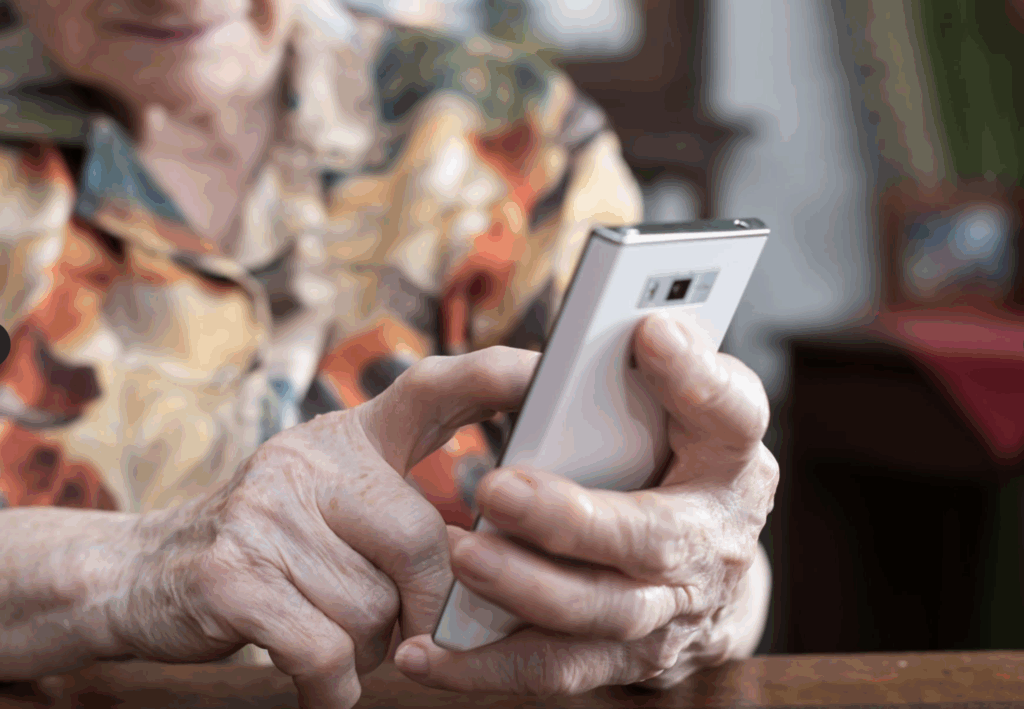
Step-by-Step: Setting Up Smart Devices for Older Adults
Once you have the right device and all necessary information, follow these steps for a successful setup:
1. Initial Configuration and Accessibility Settings
Power on the device and walk through the basic setup screens together. Choose large font sizes, high-contrast themes, and enable any built-in accessibility features such as:
- Voice commands (Siri, Google Assistant, Alexa)
- Screen readers or magnifiers for visual support
- Hearing aid compatibility and sound amplification
- Simple home screens with only essential apps
Many devices allow you to rearrange icons or add shortcuts for favorite contacts and frequently used functions.
2. Connecting to Wi-Fi and Accounts
Secure internet access is essential for most smart features. Enter the Wi-Fi credentials and test connectivity. Next, sign in or create accounts (Google, Apple, Amazon) as needed. Use strong, memorable passwords and consider writing them down in a secure place.
Set up recovery options—like a backup email or phone number—so you can help with account recovery if needed.
3. Installing and Organizing Useful Apps
Install applications that match your parent’s interests and needs. For example:
- Video calling (Zoom, FaceTime, WhatsApp)
- Medication reminders
- Health tracking and fitness apps
- Navigation tools (see best navigation apps for seniors)
- Photo sharing and camera apps—explore best cameras for grandparents for easy-to-use options
Arrange apps on the home screen for easy access and remove unnecessary icons to reduce confusion.

Personalizing Devices for Comfort and Safety
Customizing settings can make technology less intimidating and more enjoyable. Here are some important adjustments to consider:
- Emergency Contacts: Add ICE (In Case of Emergency) numbers to the lock screen or contacts list.
- Health and Fitness Tracking: Enable features that monitor steps, heart rate, or medication schedules. For more on this, check out easy fitness equipment with digital tracking.
- Notifications: Adjust alerts to be loud and clear, but not overwhelming.
- Privacy and Security: Turn on automatic updates, enable device location for finding lost devices, and review app permissions.
- Voice Assistant Setup: Train the device to recognize your parent’s voice for easier commands.
Consider setting up family sharing or remote assistance features so you can help troubleshoot or update settings from afar.
Teaching and Supporting Ongoing Use
Introducing new technology is just the first step. Ongoing support and encouragement help seniors build confidence and independence. Here’s how you can help:
- Demonstrate basic actions and let your parent practice with supervision.
- Write down simple instructions for common tasks (making calls, sending messages, using apps).
- Schedule regular check-ins to answer questions and update software.
- Encourage exploration—let them try new features at their own pace.
- Point them to helpful resources, such as easy online shopping devices for seniors for secure e-commerce options.
Patience and positive reinforcement go a long way in making technology a source of empowerment rather than frustration.
Common Challenges and How to Overcome Them
Even with careful setup, some obstacles may arise. Here are solutions to frequent issues:
- Forgotten Passwords: Use password managers or keep a written log in a safe place.
- Accidental Changes: Enable parental controls or restrict access to settings.
- Physical Limitations: Choose devices with voice control, large touch targets, and adjustable stands.
- App Overload: Limit the number of installed apps and keep the interface uncluttered.
- Connectivity Problems: Ensure Wi-Fi is reliable and consider cellular-enabled devices as a backup.
If your parent enjoys photography, you might also explore wireless picture sharing frames for easy sharing and display of family memories.
FAQ: Smart Device Setup for Seniors
What are the best smart devices for older adults who are not tech-savvy?
Look for products designed with seniors in mind, such as the GrandPad tablet, simple smartphones, or wearables with large displays. Devices with minimal setup, intuitive interfaces, and strong customer support are ideal.
How can I make a smartphone easier for my parent to use?
Increase font and icon size, enable accessibility features, and organize the home screen with only essential apps. Set up voice commands for hands-free operation and add emergency contacts for quick access.
What should I do if my parent forgets how to use a feature?
Provide written instructions or quick reference guides for common tasks. Consider setting up remote assistance so you can help troubleshoot. Encourage regular practice and be patient as they build confidence.